POSM from campaign to complaint
Coolers, racks and display units cost real money. Proxima follows each one from the campaign that plans it to the day it is serviced, so you know where every asset is and whether it is working.
| Stage | Where | What happens |
|---|---|---|
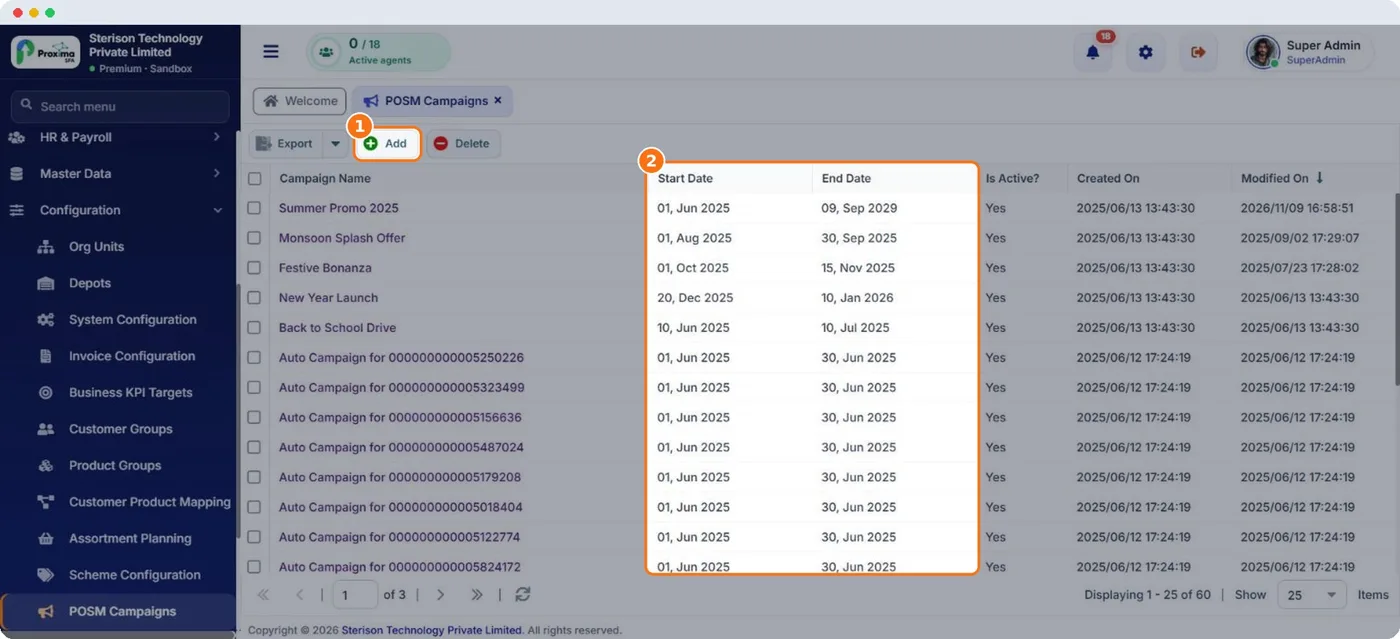
| Plan | Configuration › POSM Campaigns | A campaign with start and end dates and the materials in it. |
| Target | Configuration › Customer Groups | A POSM type customer group lists the shops eligible. |
| Order | Field app › POSM Order | The rep orders material for a shop during a visit. |
| Approve | Approvals › POSM Approval | A manager approves or rejects the request. |
| Install | Field app › Install POSM | The rep or technician installs it with serial number, location, technician and before and after photos. |
| Track | Field app › POSM Track | On later visits the rep checks condition, scanning the code if it has one. |
| Complaint | Field app › POSM Complaints | Broken, missing, dirty or not working items are reported and then closed in Nexus. |
| POSM order status | Meaning |
|---|---|
| New | Ordered, waiting for approval. |
| Confirmed | Approved. |
| Partially Delivered / Delivered | Material sent to the shop. |
| Partially Installed / Installed | Material in place and recorded. |
| Cancelled | Will not go ahead. |
Tip
End campaigns on time. Materials of running campaigns are what reps can order, so an old campaign left open keeps old material in the list.
Related guides: Setting up POSM · POSM orders (field app) · Installing POSM.
Still stuck?
Message our support team on WhatsApp in English, Tamil, Malayalam or Hindi.