Importing customers and products
---
title: Import customers and products from Excel
product: Proxima Nexus (back office)
category: Getting started › Master data
updated: 2026-11-20
applies_to: Customer import, Product import (template version 2)
---
Bring your existing customer and product lists into Proxima in minutes. Fill a ready-made Excel template using plain words like *Kirana*, *Kanyakumari* or *Pieces*. You don't need any internal codes. Proxima checks every row and shows you a report before anything is saved. You then import only the rows that are ready.
Why it matters
- Go live faster. Load hundreds of outlets and SKUs in one go instead of typing them one by one.
- Clean data from day one. Spelling mistakes are caught before they reach your masters. For example, Proxima asks *"Did you mean Tirunelveli?"* instead of creating a second region.
- Your lists grow with you. A new brand, region or outlet type is added to your company's lists automatically, and only for your company.
- Safe to repeat. Importing the same file again updates the same customers and products. It never creates duplicates.
---
Before you start
- You need a Proxima Nexus login with access to Master Data › Customers and/or Master Data › Products.
- Use Microsoft Excel, Google Sheets (download as .xlsx) or LibreOffice.
- Import products and customers in any order. They don't depend on each other.
Step 1 – Download the template
- Open Master Data › Customers (or Master Data › Products).
- Click Import ▾ › Download Excel Template.
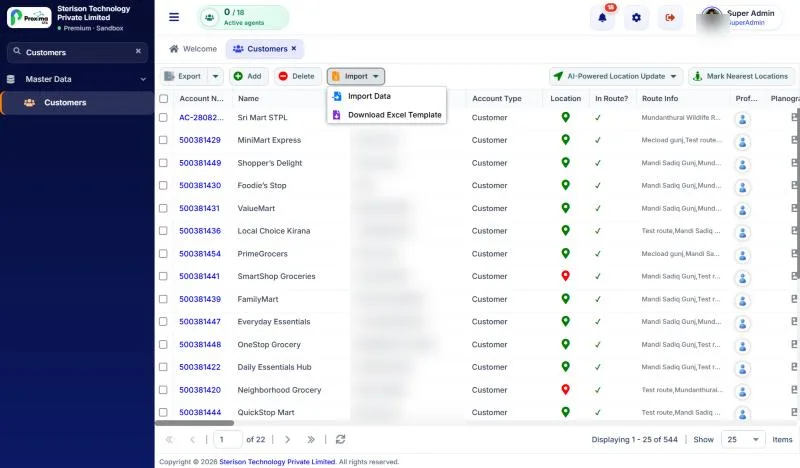
The template has three sheets:
| Sheet | What it's for |
|---|---|
| Customers / Products | Your data: one row per customer or product. |
| Instructions | Every column explained: what to enter, an example, and what happens if you leave it blank. |
| Allowed values | The fixed lists (units of measure, customer type, country). |
Header colours tell you what each column needs. Hover over a header to see its note.
| Colour | Meaning |
|---|---|
| 🔴 Red | Required for a new record. |
| 🔵 Blue | Optional. Leave it blank if you don't have it. |
| 🟢 Green | Your own list, such as Brand, Category, Region, Trade Channel or Sub Trade Channel. Type the name; a new name is added to your list. |
| 🟣 Purple | Fixed list shared by every company, such as UOM, Price UOM, Customer Type or Country. The value must match the list. |
Step 2 – Fill the template
- Keep the header row and don't move or delete columns. Leave a column empty if you don't use it.
- The two yellow rows whose code starts with
SAMPLE-are examples. Overwrite or delete them; they are skipped anyway. - Type list values as plain text. Capital letters and extra spaces don't matter, so
kirana,KiranaandKIRANAall mean the same value. - For units you can use everyday words: *Pieces*, *pcs*, *Kilogram*, *Litre*, *Bottle*, *Carton*, *Case*, *Each*.
- Dates:
25-11-2026. Times:09:00or9:00 AM. Yes/No columns:Yes,No,1or0.
Customer template – the columns that matter most
| Column | Required? | Example | If left blank |
|---|---|---|---|
| Customer Code | Yes | C-1001 | – |
| Customer Name | Yes (new) | Daily Needs Kirana | – |
| Village / Town / City | Yes (new) | Nagercoil | – |
| Mobile / WhatsApp Number | No | 9876543210 | blank |
| Customer Type | No (fixed list) | Customer | Customer |
| Country | No (fixed list) | India | India |
| State, Region, Trade Channel, Sub Trade Channel, Segment, Town Class, Delivery Plant | No (your lists) | Tamil Nadu, Kanyakumari, General Trade, Kirana | blank |
| Payment Terms | No (your list) | 30 days, Net 30, No credit | blank |
| Activation Date | No | 01-11-2026 | today |
| Open Monday … Sunday / Delivery Monday … Sunday | No | Yes | Monday–Saturday Yes, Sunday No |
| Credit Limit, Deposit Amount | No | 25000 | 0 |
| Latitude / Longitude | No | 8.178 / 77.411 | blank (captured on the first visit) |
Product template – the columns that matter most
| Column | Required? | Example | If left blank |
|---|---|---|---|
| Product Code | Yes | P-2001 | – |
| Product Name | Yes (new) | Sprite 600 ml Bottle | – |
| Trade Price (Ex.Tax) | Yes (new) | 36 | – |
| Brand, Pack Size, Flavor, Category, Pack Type, Trademark | No (your lists) | Sprite, 600 ml, Beverages | blank |
| UOM | No (fixed list) | Pieces, Bottle, Kilogram | PCS (Pieces) |
| Price UOM | No (fixed list) | CS (per box) or EA (per piece) | the UOM's own price unit (e.g. Pieces → EA, Carton → CS) |
| Items Per Box | No | 24 | 1 (always 1 when Price UOM is EA) |
| Purchase Price (Ex.Tax) | No | 32.50 | 0 |
| Tax (%) | No | 18 | 0 |
| MRP | No | 40 | the Trade Price |
| Maintain Stock (Cases/Box, Units) | No | 5 | 0 |
**Payment terms are matched by the number of days.** *30 days*, *Net 30* and *30 Days From Billing* all mean the same term. If your company has no term with that many days yet, a new one is added as *N Days From Billing* (or *No Credit* for 0 days). The invoice due date is the invoice date plus those days. Write the days as a number; a term without days, such as *Monthly*, is an error.
**Updating existing records:** if a code already exists, the row **updates** that customer or product. Blank cells on an update **keep the current value**; they don't wipe it and don't reset it to the default.
Step 3 – Check the file
- Click Import ▾ › Import Data.
- Click Browse, choose your filled file, then click Check file.
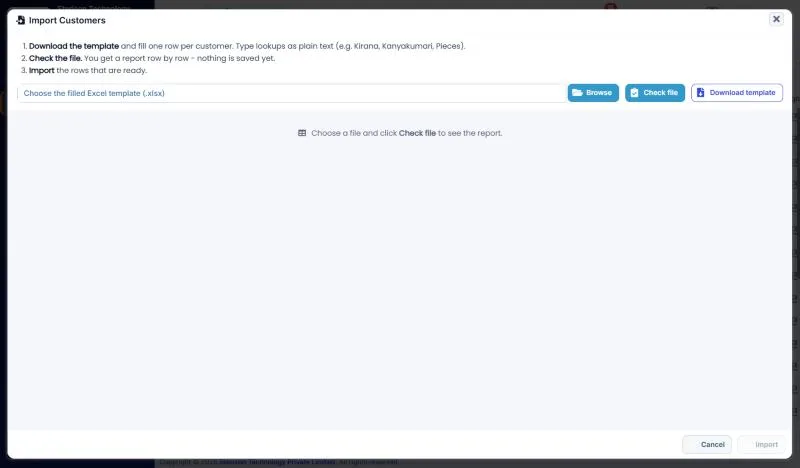
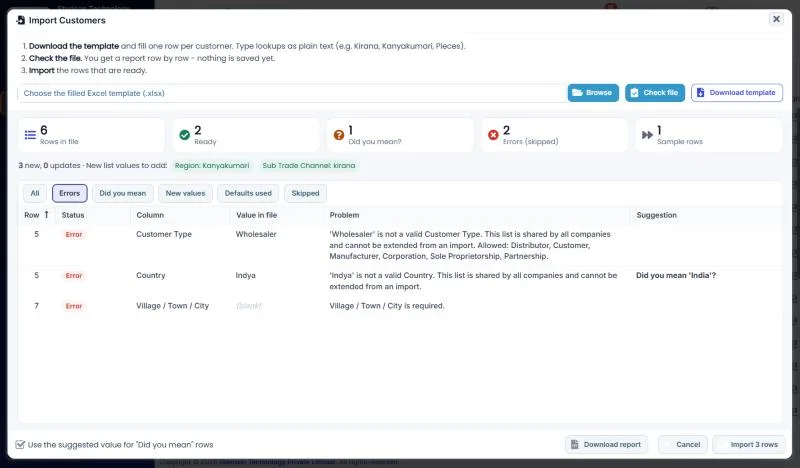
Proxima reads every row and shows the result. Nothing has been saved yet.
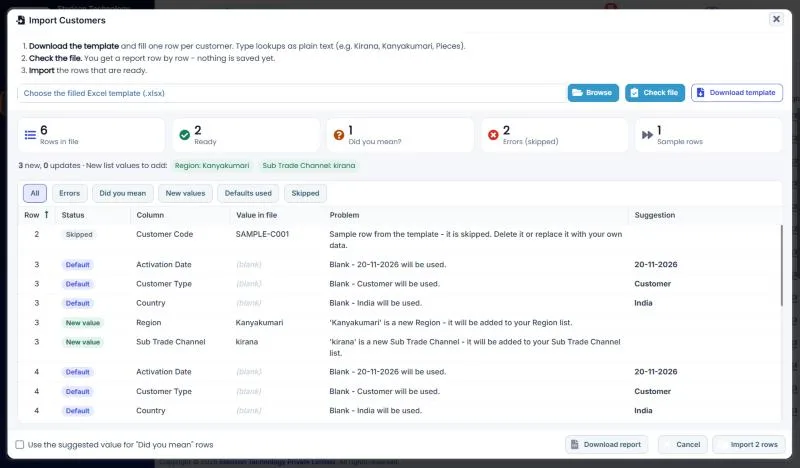
The cards at the top summarise the file:
| Card | Meaning |
|---|---|
| Ready | Rows that will be imported. |
| Did you mean? | Rows with a value that is *close* to one you already have (likely a typo). |
| Errors (skipped) | Rows that can't be imported until you fix them. |
| Sample rows | The template's SAMPLE- rows, which are always skipped. |
Below the cards you can see how many rows are new and how many are updates, plus the new list values that will be added for your company (for example *Region: Kanyakumari*).
The table lists every finding by row, column, value, problem and suggestion. Use the filter buttons (Errors, Did you mean, New values, Matched, Defaults used, Skipped) to focus on one kind. Download report saves the list as a CSV file, which you can share with whoever prepared the data.
What each status means
| Status | What happened | What you do |
|---|---|---|
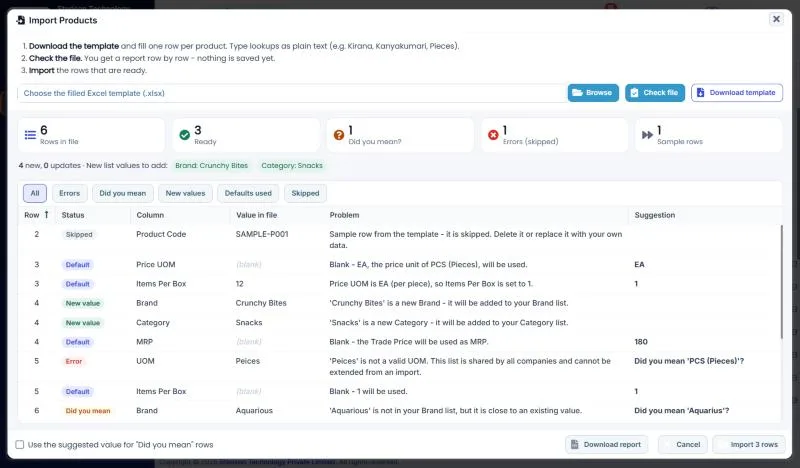
| New value | The name isn't in your list yet. It will be added to your company's list. | Nothing, if it's a genuinely new value. |
| Did you mean | The name is very close to an existing one, e.g. *Tirunelvli* → *Tirunelveli*, *Bakary* → *Bakery*, *Aquarious* → *Aquarius*. Proxima won't create a near-duplicate silently. | Tick Use suggested values, or fix the spelling in Excel and check again. |
| Error | The row can't be imported: a required column is empty, a number isn't a number, or a fixed-list value doesn't exist (e.g. Country *Indya*, UOM *Peices*). Fixed lists are shared by all companies and can't be extended from an import. | Fix the cell, using the suggestion if one is shown, and check again. |
| Matched | A payment term was matched to one of yours by its number of days, e.g. *Net 45* → *45 Days From Billing*. Also shown when one of your terms is saved with different days than its name says. | Nothing, unless the warning says a term's days are wrong. If so, correct that term in Master Data › Lookups. |
| Default | A blank optional cell gets a sensible default (Customer, India, today, PCS …). | Nothing, unless you want a different value. |
| Skipped | A SAMPLE- row from the template. | Delete it or overwrite it. |
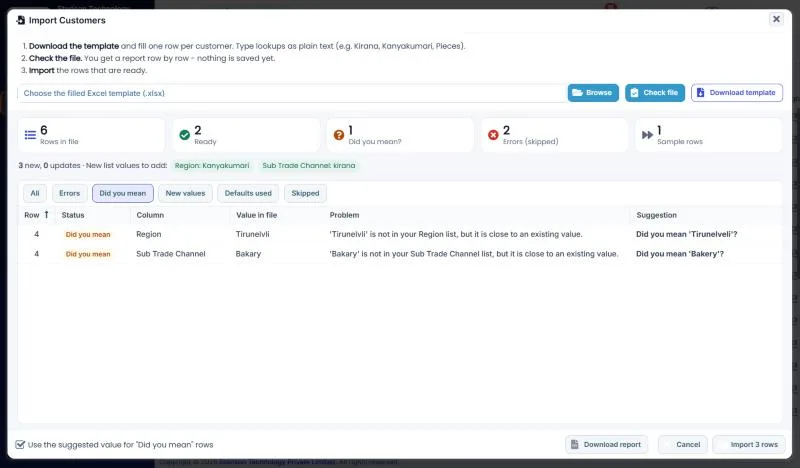
Step 4 – Import
- Decide on the Did you mean rows:
- Tick "Use suggested values" to import them with the suggested spelling, or
- leave it unticked to skip them for now.
- Click Import N rows. The number shows exactly how many rows will be saved.
- Confirm. Proxima tells you how many rows were imported and how many new list values were added.
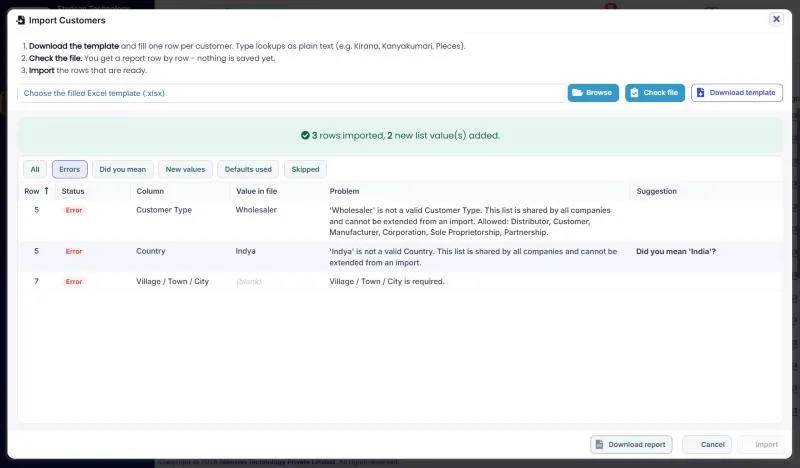
Rows with errors stay in the report so you can fix them. Correct those rows in Excel and import the same file again: the rows already imported are simply updated, and the fixed rows are added.
The product import works the same way:
---
Frequently asked questions
Do I still need lookup codes?
No. Type the name as you know it. Old template files that contain codes still import, so you don't need to redo them.
Will a new value I type be visible to other companies?
No. New values for your own lists (brand, category, region, channels, segment, payment terms, depot …) are created only for your company. Shared lists such as UOM, Price UOM, Customer Type and Country are never changed by an import.
What if two people import at the same time?
Imports for the same company run one after another, so the same new value is never created twice.
Can I import the same file twice?
Yes. Customers and products are matched by their code: existing ones are updated and new ones are added. Nothing is duplicated.
How big can the file be?
Thousands of rows are fine: a 3,000-row file is checked in about a second. For very large lists, split the file by region or category so each report is easy to review.
Why did "Net 30" not create a new payment term?
Because your company already has a 30-day term. Payment terms are matched by their number of days, so you never end up with two 30-day terms under different names.
Which UOM should I choose?
Use the unit you sell in (Pieces, Bottle, Kilogram, Litre …). Set Price UOM to CS when your price is per box or case (and fill *Items Per Box*), or EA when it's per piece. If you leave Price UOM blank, Proxima picks the usual one for your UOM.
Still stuck?
Message our support team on WhatsApp in English, Tamil, Malayalam or Hindi.